
LEARN WITH MUVO
How to Create AI Music Videos with MUVO
Turn an eligible song into an AI music video on iPhone or iPad. Learn MUVO's Template and Custom workflows, portrait checks, storyboards, costs, and export.
A music video starts with a decision about what the song should feel like on screen. A simple performance can suit one song; another might need a visual setting that changes with the music. You can make that decision before generating footage.
This guide covers MUVO’s portrait-led music video workflows on iPhone and iPad. MUVO publishes the guide. The example briefs illustrate creative directions; results and likeness can vary.
What you need before creating an AI music video
Start with an eligible finished song and an internet connection. For the workflows described here, you also need a suitable self-portrait of yourself as an adult, the rights to use the image, and the in-app consent confirmations. These self-portrait features are not for submitting another person’s likeness.
If you have not made a song yet, follow how to make an AI song, listen to the finished recording, and choose a passage that works as a visual moment. Start video creation from an available Video action on an eligible song; feature availability depends on the actions shown in your app.
Video creation has its own credit costs. A song-generation payment does not cover every subsequent video stage.
Template clip or Custom music video: which should you choose?
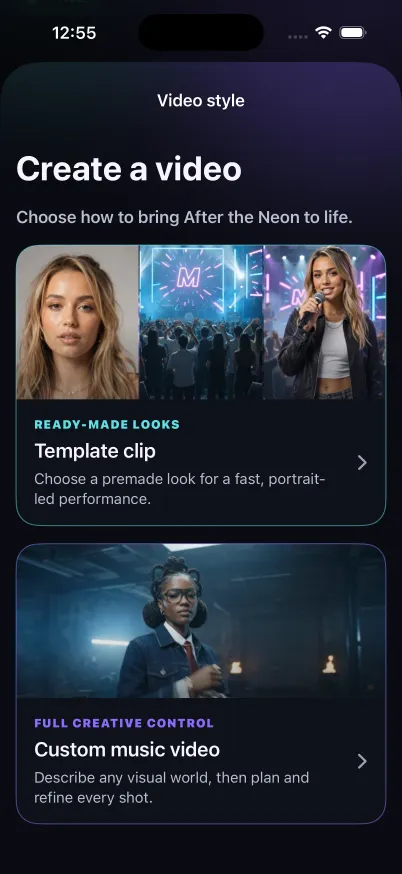
Choose Template clip for a portrait-led performance of a vocal song in a ready-made environment. In the documented workflow, you select one of five environments, a 10–60 second song excerpt, and 480p or 720p quality. This is a good starting point when a preset visual setting matches your idea.
Choose Custom music video when you want to describe a visual world and review how the video will be built. Custom supports eligible vocal or instrumental songs, with a look and storyboard that you can refine before the final render.
The practical difference is how much direction you want to give. A Template clip starts with an established look. A Custom music video gives you decisions about the setting and individual shots. Those extra stages can have separate charges.
See the Template and Custom examples to understand the two formats before deciding.
How to create a Template music video
1. Choose an eligible vocal song
Open a finished song and choose Video, then Template clip. Pick a section with a clear vocal phrase and a beginning and ending that work as an excerpt.
Listen to the range before generating. A chorus is an obvious option, but a quieter verse can work well if that is the part you want to share. The most recognizable moment is not always the loudest one.
2. Select the setting and your self-portrait
Choose a ready-made environment and provide your own suitable adult self-portrait. Complete the image-rights and consent checks shown in the app.
Review the photo for practical problems such as an obscured face or confusing background. Use a clear image that meets the app’s requirements. A good source photo can make your intention clearer, but it does not guarantee an exact likeness.
3. Set the excerpt and quality
Choose a supported 10–60 second range and either 480p or 720p. Check that the selection includes the whole phrase you want. Avoid cutting off a word at the start or ending just before the musical resolution you intended to show.
4. Review the quote and confirm
Check the song range, setting, portrait, and credit quote together before confirming. Wait for the finished video, then watch it with sound before exporting. Review the actual result rather than assuming it will match an illustrative preview exactly.
How to create a Custom AI music video
1. Pick the song range and describe the visual idea
Choose Custom music video for an eligible vocal or instrumental song. Select the passage you want to use and write a creative brief focused on place, mood, light, and movement.
For example:
A quiet city rooftop at blue hour. Warm windows in the background, a reflective opening, and gentle camera movement. As the chorus arrives, open the view toward the skyline and make the lighting feel more hopeful.
The brief connects a visual change to a musical change. It gives the project a direction without trying to cram several unrelated locations and moods into a short excerpt.
2. Complete the portrait checks and review the look
For this portrait-led workflow, select your own adult self-portrait and complete the required confirmations. Review the planning quote before proceeding.
When the proposed look is available, check whether the setting, lighting, and overall feeling suit the song. Make useful changes here before committing to later stages. Planning is a review point in the creative process, not a promise that every rendered frame will be identical.
3. Review the storyboard
The storyboard lays out the visual sequence before the final video. Look at how the shots relate to one another: does the opening establish the scene, do later shots add something, and does the ending feel intentional?
Refine individual shots where the app offers that action. Keep the central idea consistent. If one frame belongs to a completely different visual world, decide whether it is a deliberate transition or a distraction.
Review each quote. Storyboard creation and regenerating a look, frame, or shot can have their own charges.
4. Confirm the render and watch the result
When the look and sequence are ready, review the final-render quote and confirm. Watch the completed video from beginning to end with the song playing.
Check the relationship between movement and music, visual consistency, and the portrayal of your likeness. For vocal material, also review the performance and any visible mouth movements. Keep or share the result only after seeing what was actually produced.
How to write a useful music video prompt
A useful brief answers four questions: Where are we? What is the mood? What should move? What changes with the song?
For a restrained acoustic passage:
A softly lit room at dusk, warm lamps, and a calm, intimate atmosphere. Mostly steady framing with slow movement. Let the final shot settle as the vocal phrase ends.
For an instrumental with a gradual build:
A coastal setting just before sunrise, cool colors at first, and a warmer horizon as the music opens up. Gentle movement throughout, with a wider final view.
These are example directions to adapt to the available mode and settings. They are not exact shot specifications or guaranteed render outcomes.
Exporting and sharing your music video
MUVO exports finished vertical videos for personal sharing. An optional karaoke version is available when a compatible vocal timeline exists. Instrumental music has no sung lyrics to display, and not every vocal source has compatible timing.
Check the exported result before posting. AI-generated performances should not be presented as authentic footage or endorsements. MUVO-generated outputs are for personal, noncommercial use; advertising, sponsored content, sales, and client work are outside the permitted output uses. See MUVO’s sharing terms.
AI music video FAQs
Do I need video-editing experience?
You can start with a Template clip and a ready-made environment. Custom asks you to make more choices about the visual direction and storyboard, but those choices begin with ordinary descriptions and review steps.
Can I create a video from an instrumental song?
Custom music videos support eligible instrumental songs. Template clips in the workflow described here use vocal songs. Check the available Video actions for your particular source.
Can I use someone else’s face?
No. The self-portrait workflows covered here require your own portrait as an adult, the necessary image rights, and completed in-app consent checks.
Is one credit payment enough for a Custom video?
Custom planning, storyboard creation, final rendering, and regeneration can have separate charges. Review the quote before each paid action rather than assuming the first quote covers the whole project.
Will the video look exactly like the storyboard?
No exact match is guaranteed. AI results and likeness vary. Use the look and storyboard to refine your direction, then review the finished video before exporting or sharing it.