
LEARN WITH MUVO
How to Separate Stems from a Song with AI
Learn how to separate vocals and instruments in MUVO, use Simple and Stems controls, rebalance a song, and save a new mix on iPhone or iPad.
Sometimes the song is already right, but the balance is not. You might want a clearer vocal, a quieter backing track, or a closer listen to the bass line. AI stem separation gives you a way to work with parts of an existing recording.
This guide explains vocal separation and remixing in MUVO, from choosing a source to saving a new mix. MUVO publishes this guide, and the steps describe its iPhone and iPad workflow.
What is stem separation?
AI stem separation estimates individual musical parts from a mixed recording. A separator might produce a vocal part, a drum part, a bass part, and groups of other instruments that you can listen to and rebalance.
Those estimates are different from the original recording session’s multitracks. A studio session may contain many separate microphone takes and instrument recordings; an AI separator works from the sound already combined in the file. For background on the terminology, see iZotope’s explanation of stems and multitracks.
Separation is also different from generating new music. Splitting a track tries to reveal what is already there. Adding an AI instrument creates an additional musical part.
What audio can you use in MUVO?
You can start with a finished song in your MUVO Library or import a WAV, M4A, or MP3 recording. Imported audio can be up to 50 MiB and ten minutes. Use a file you have the rights and permissions to upload and process, and complete the in-app checks before uploading.
Choose the best source you already have permission to use. Listen to it first: distortion, missing sections, or a noisy recording may make the separated parts less useful. Keep your original available so you can compare it with the remix.
Having a track in a streaming subscription does not by itself establish permission to upload and process it. This workflow starts with an eligible Library song or an audio file, not a streaming-service URL.
How to separate stems from a song in five steps
1. Open Remix and choose the source
Choose a finished Library song, or use Import Audio for a permitted file. Check that you have selected the intended recording before continuing. An instrumental version and a vocal version of the same song will give you different material to work with.
If you need a source song first, follow the guide to making an AI song. You can then use the finished recording as your starting point in Remix.
2. Review the stem split
Use Review stem split to see the quote and confirm separation. One split creates the set of vocal and instrument parts. Wait for the session to become ready before evaluating the result.
Changing a mix level is not another separation request. You do not need to split the song again just to switch between the Simple and Stems views.
3. Start with Simple controls
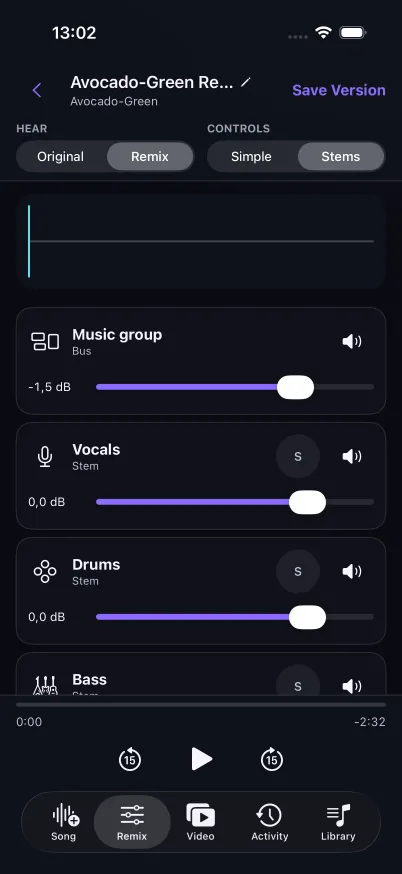
Simple gives you two main controls: Vocals and Music. The Music group contains the instrumental parts. This is a useful starting point if your goal is simply to hear the singer more clearly or lower the vocal against the accompaniment.
Try lowering Music a little while leaving Vocals in place. Then compare the remix with the original. Small changes can be easier to judge than immediately pushing one part to its maximum level.
4. Open Stems for individual parts
Switch to Stems to work with vocals, drums, bass, guitar, piano, and other instruments. Use solo to hear a part in isolation, mute to remove it from the current mix, and level or pan controls to change its balance and placement.
These are separation categories, not a promise that every song contains each instrument. A piano stem from a track with no piano may have little useful content. Listen to the parts you need rather than assuming every lane must contribute.
Simple and Stems use the same separation. Switching modes changes the controls you see; it does not create a new set of stems or submit another paid generation.
5. Compare and save a new version
Use the Original and Remix listening choices to check your changes. Listen to both a quiet section and a busy section. A vocal balance that works in the verse may need reconsidering when the chorus fills out.
When you are happy with the balance, choose Save Version and give the mix a recognizable title. MUVO saves a new Library version associated with its source, so the original remains available. You can use the saved audio version for listening and export through the Library workflow.
Three useful stem-separation exercises
Bring a quiet vocal forward. In Simple mode, reduce Music slightly, then compare with Original. The aim is clearer words without losing the feeling of the accompaniment.
Make a personal instrumental practice mix. Mute Vocals and listen through the whole song. Some vocal sound or effects may remain; judge whether the result is suitable for your personal practice rather than assuming a perfect vocal removal.
Study the rhythm section. In Stems mode, solo drums or bass to hear the part, then return it to the full mix. Try a modest level change and compare how the groove feels.
Use the Remix page’s original and instrumental demo as an example of the workflow, not a guarantee of the separation quality your own source will produce.
Why do separated stems sometimes sound imperfect?
AI separation estimates overlapping sounds. You may hear part of another instrument in an isolated stem, a watery texture, or pieces of vocal reverb left in the accompaniment. These are often called separation artifacts. Audio-tool makers also treat reducing artifacts as an ongoing source-separation challenge; see iZotope’s Music Rebalance explanation.
Listen to a stem alone to understand the issue, then listen to it in the mix. A part that sounds unusual in isolation may still be useful for a gentle balance adjustment. If muting it completely exposes a problem, try a smaller reduction instead. Do not assume repeated paid splitting will repair a difficult source.
Adding an AI instrument after separation
If the existing parts cannot produce the change you want, MUVO can add a generated instrument part. Choose the full song or a selected range, describe the part, review its separate quote, and confirm generation.
For example, you might request a restrained percussion part for a chorus, then blend it into the existing mix. This is new generation, not another view of the original stems. Listen before saving a new version, and check whether the additional part supports the song.
Stem separation FAQs
Is stem separation the same as a vocal remover?
Vocal removal is one use of separation. MUVO’s Simple controls let you rebalance vocals against music, while Stems opens individual instrument categories for more detailed mixing.
Does changing from Simple to Stems cost credits?
No new separation is submitted when you switch modes. Both use the same separated tracks. Separation and generated instrument additions have their own reviewed quotes; changing levels does not generate new music.
Will I get the original studio stems?
No. AI separation estimates parts from the mixed source. It does not recover the recording session’s original microphone tracks, takes, or production project.
Can I download every stem as a separate file?
This guide covers working with stems inside MUVO and saving a mixed Library version. It does not describe a standalone stem-pack export. If separate files are essential to your project, confirm the available export actions before choosing a tool.
Can I publish or sell the remix?
Only use source material you have permission to process. MUVO-generated outputs are for personal, noncommercial sharing, subject to the Terms of Use and destination rules. Buying credits does not add commercial-use rights.